Thursday, September 6, 2012
Friday, March 23, 2012
Adobe just announce it new Photoshop CS6
Watch in HD here
http://www.facebook.com/photo.php?v=10150644512244389
Posted by
Jollence Lee
at
8:12 PM
0
Person left a Comment Here
Labels: Photoshop News, Photoshop Tutorial
Thursday, March 25, 2010
Short Tutorial of Nikon Capture NX 2 Color Control Point
Simple and short tutorial of Capture NX2. Not the best video but hope this helps.
Posted by
Jollence Lee
at
8:51 AM
0
Person left a Comment Here
Labels: Photoshop Tutorial
Saturday, February 27, 2010
Photoshop Workshop: Basic Photoshop for Photographers
The program:
9am - Introduction of Photoshop and learning the Photoshop tools.
In this part participant will learn how to use each of the basic tool found in photoshop.
10am - Break
10.30am - Basic adjustment - In this part, participant will learn the basic adjustment that can be found on the menu to do adjustment of their photos. They will learn how to use Brightness/Contrast, Level, Curves, Hue/Saturation & Shadow/Highlight. They will have an exercise during the tutorial.
12pm - Lunch Break
1.30pm - Understanding Layers - In this session, they will learn how to use layers in their photoshop editing. How to put all basic adjustment they've learn in the morning session in layers. They will do some exercise during this tutorial to batter understand the subject.
2.30pm - Black & White - In this part they will learn how to convert their images into black and white in few different method in photoshop. In this way, they will know how to get the best black and white convertion suitable for their images.
3pm - Image for web use - Participant will learn how to prepare images best for web sharing facebook, flickr, blog and websites.
3.30pm - Finish. Time for Q&A
Coming soon for Sandakan side for Photoshop workshop!
Posted by
Jollence Lee
at
10:02 AM
0
Person left a Comment Here
Labels: Photoshop Tutorial, workshop
Thursday, February 18, 2010
Photo's Color Profile for Web
I know hard to tell the difference in this photos, Sample 1 see hill's green, Sample 2 see clouds and highlight.
Posted by
Jollence Lee
at
12:41 AM
1 Person left a Comment Here
Labels: Photoshop Tutorial
Monday, February 8, 2010
Photoshop: Curves
click screen shot to open large
Before
After
I hope this useful for you all cheers!
Posted by
Jollence Lee
at
1:22 AM
0
Person left a Comment Here
Labels: Photoshop Tutorial
Tuesday, February 2, 2010
Another Infrared photos made in Photoshop
Although it is not as best as the real IR image using IR filter. Green colors turns to silvery color.
Posted by
Jollence Lee
at
1:23 PM
0
Person left a Comment Here
Labels: Photoshop Tutorial
Thursday, January 21, 2010
IR in Photoshop
Normal Shot
Normal Black & White
IR Shot
Second sample
Normal Shot
Normal Black & White
IR Shot
Posted by
Jollence Lee
at
11:17 PM
1 Person left a Comment Here
Labels: Photoshop Tutorial
Friday, January 1, 2010
Patch match Adobe Photoshop CS5
This is interesting, love to share it here.
Posted by
Jollence Lee
at
11:33 AM
0
Person left a Comment Here
Labels: Photoshop Tutorial
Tuesday, August 4, 2009
Running at 100km per hour
Posted by
Jollence Lee
at
10:50 PM
1 Person left a Comment Here
Labels: Photoshop Tutorial
Tuesday, May 12, 2009
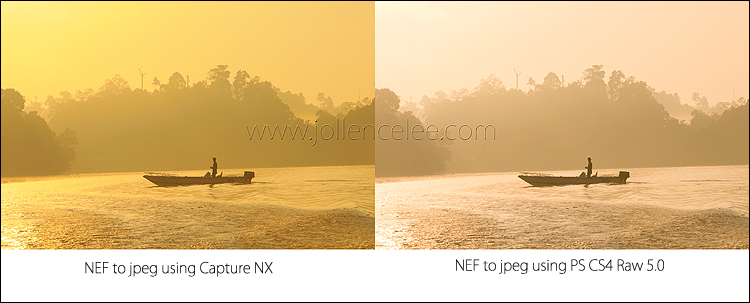
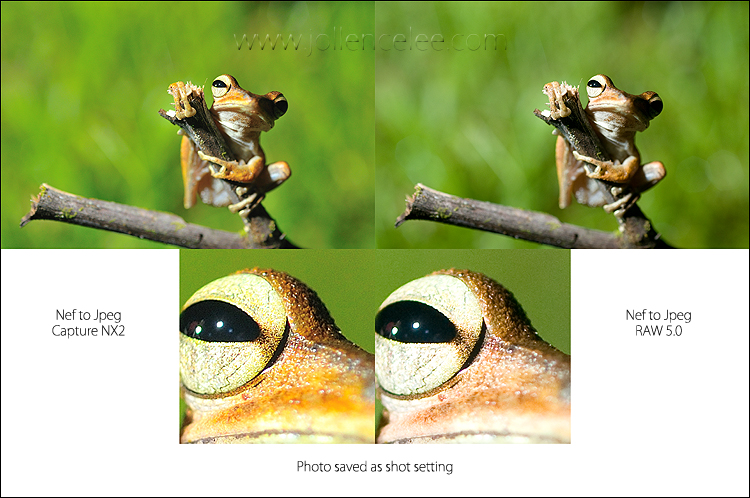
Nef to jpeg: Capture Nx2 or CS4 RAW 5.0
Sample 1
Sample 2
I've been reading some review done by most website doing comparison between cameras. When they do RAW shots comparison, they never clarify what software they use to convert the RAW file. I'm a little bit skeptic about it. The raw 5.0 by adobe still can't produce the exact color that came out from the Nikon cameras. When you do Nef conversion using Capture NX2, what you see is what you'll get. The RAW 5.0 in cs4 alter the color of the photo during conversion.
Posted by
Jollence Lee
at
10:46 AM
5
Person left a Comment Here
Labels: Photoshop Tutorial
Friday, January 30, 2009
Velvia Vision
The plug in works for landscape image but I haven't try on others like portrait. If anyone of you have tried it, might be want to share it here.
Posted by
Jollence Lee
at
12:06 PM
2
Person left a Comment Here
Labels: Photoshop Tutorial
Thursday, January 8, 2009
Unsharp Mask
Some one have ask me on how I sharpen all my images. I used several way to sharpen my images but mostly I used one most often. You can visit my tutorial blog to see my simple sharpening way with photoshop.
Posted by
Jollence Lee
at
10:30 AM
2
Person left a Comment Here
Labels: Photoshop Tutorial
Thursday, July 31, 2008
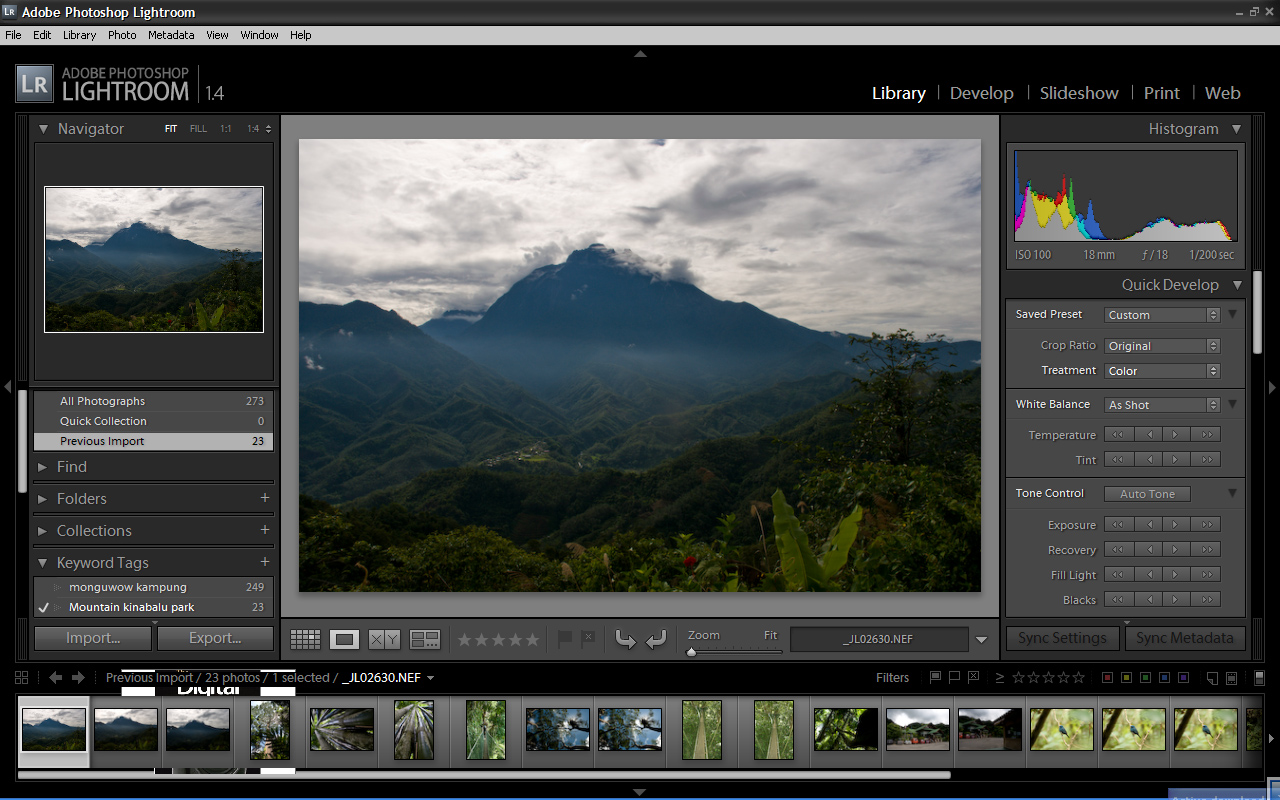
Adobe Lightroom
When I first try the adobe lightroom, I couldn't understand how it works. But after I took some tutorials I begin to like how the lightroom works. Its cut my image editing in half with lightroom than I used to with different method.
Posted by
Jollence Lee
at
11:47 AM
1 Person left a Comment Here
Labels: Photoshop Tutorial
Tuesday, May 6, 2008
How much editing I do?
Posted by
Jollence Lee
at
11:28 PM
5
Person left a Comment Here
Labels: Photography, Photoshop Tutorial
Sunday, April 6, 2008
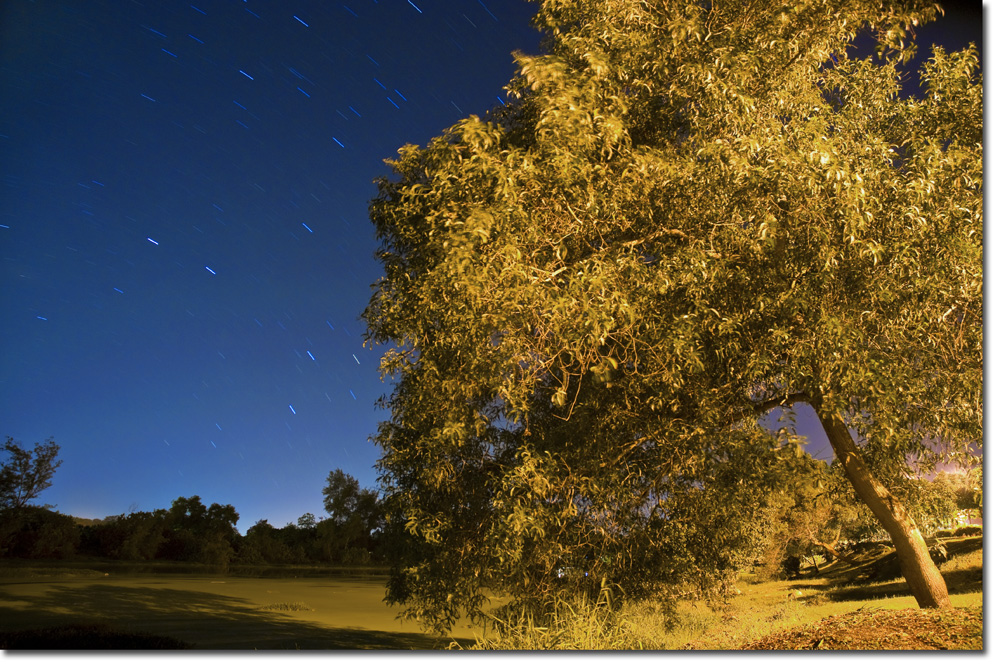
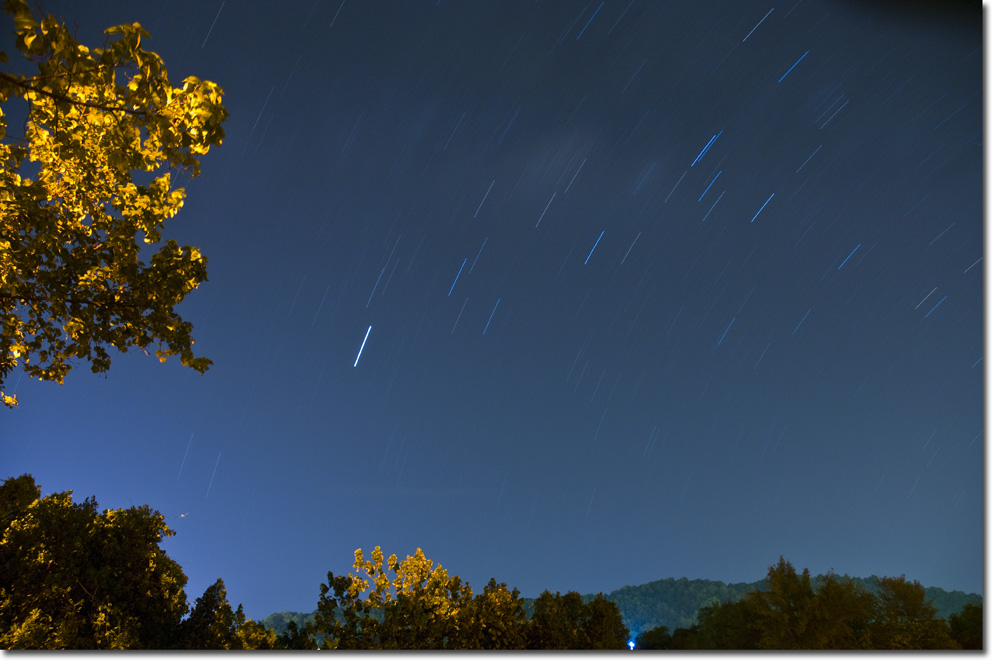
Star Trail Shots
Tripod, you need a steady tripod. sometime during the exposure strong wind can shake your camera if your tripod not steady enough. Especially when shooting near the beach where strong wind.
How long is the exposure? The longer exposure time, the more longer star trail you get. Those I have was only 15 minute+another 15minute noise reduction job. which make it altogether 30 minute to wait then I can make another shot. Some people let the exposure up to 1 hour. Waiting time can be boring.
My advise when shooting star trail at night, don't go out there alone at night. You know you are bringing expansive equipment. an less you are shooting from your own house backyard.
You can post on comment if you still need to ask question ok. or if you are in KK you can call my mobile number.
Posted by
Jollence Lee
at
4:04 AM
6
Person left a Comment Here
Labels: Photography, Photoshop Tutorial
Wednesday, March 5, 2008
Basic HDR Process
HDR or (High Dynamic Range) is not a new thing in photography. But still, not many people know how to do it. If you don't know what it is, HDR is where you want to get the best result of certain photo by taking several same shots with different exposure setting, start by overexpose to underexpose. Tripod is a must for this kind of shot. So this waterfall shot, I took four images with different exposure, as I want the best result I used RAW. Then after that converted them to jpeg. I used photomatix to do my HDR, in photomatix up in the menu go to HDR>Generate>Browse photos. Load all the images then click ok, then it will take about few second for it to process then after that when it open the image, the process is not yet done so go to menu again click HRD>Tone mapping. It will open up an adjustment window for you to choose your desire saturation and exposure. Then save as.
You will find that the result is not what you expected so you make another adjustment of the HDR photo in photoshop or Capture NX. For my waterfall I did the adjustment of the contrast and saturation with Capture NX.
Posted by
Jollence Lee
at
7:18 PM
9
Person left a Comment Here
Labels: Photography, Photoshop Tutorial
Monday, December 3, 2007
Adobe Photoshop Photomerge - Creating Pano
step1- Open images that you want to stitch together in photoshop, you can either open all the images in one time in open folder or go to (step 2) file>automate>photomerge. I usually like to open all in using open folder option as it save loading time.

Step 2 -Go to file>automate>photomerge
Step 3 - Once the photomerge option box open, they will ask to either browse images from folder or just add already opened images. Make sure check the desire style of stitching, there are few option in there auto, perspective, cylindrical, reposition only and interactive layout. I usually used cylindrical way. Make sure the box blend images together was checked then click ok.
Step 4 - After step 3, you will actually have to wait it automatically align, blend and stitch the images together. After it was done, you will see something like image shown below.
Step 5 - Crop the stitched images to something like shown in image below then flatten images into only one layer. That you can find under layer>flatten images.
Step 6 - By using Rectangular marquee tool, select all image then right click at the image then choose free transform . The click wrap mode which you can find just above to image. In wrap mode you can drag the photo edges until the white area you cannot see. In wrap mode also you can fix the level of the image. Then after that just press enter when done.
Step 7 - The result you will get is some thing like image below. Now you can do all the normal adjustment such as contrast, color correction or saturation, make sure you save the file under Save as new file, other wise the original gone.
I hope you can understand my simple photoshop tutorial, please ask me if you still don't understand the process.
Posted by
Jollence Lee
at
9:44 PM
0
Person left a Comment Here
Labels: Photoshop Tutorial